

API key security: trade-only permissions and an IP whitelist
When you create an API key on OKX or Binance, enable only read and trade, never withdraw, bind it to our server's IP, and ideally use a sub-account. Do these three things and even a leaked key can't be used to take your money.
Contents
The short version: an API key for ChainMakes needs exactly three things right:
- Permissions: Read and Trade only. Never enable Withdraw.
- Bind an IP whitelist with only our server’s IP:
13.159.228.77. - Use a dedicated sub-account, separate from your main funds.
Do all three and a leaked key is useless to anyone else — and no one can withdraw your money with it.
Why no withdraw permission
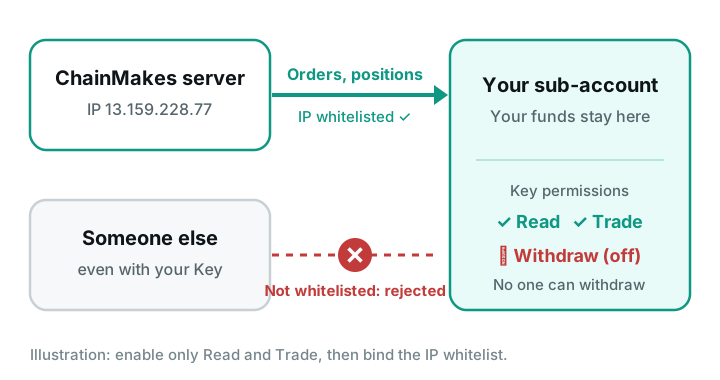
ChainMakes is non-custodial. The grid places orders in your own exchange account, and your funds never leave it. Placing orders needs only Trade; checking positions and balances needs only Read.
We have no use for withdrawals, so we don’t ask for them. The app checks a key’s permissions before saving it, and a key with withdraw permission is rejected outright.
Why bind an IP
With an IP whitelist, the exchange only accepts requests from that IP. Every order ChainMakes places comes from our server, whose outbound IP is:
13.159.228.77Once bound, even if someone gets your key, secret and passphrase, they can’t use them from their own machine.
If the app says “the server IP is not on this key’s whitelist”, go back to the exchange and check the IP — look for typos and extra spaces.
Why a sub-account
Two reasons:
- Contain the risk: move only what the grid needs into the sub-account. Your main account isn’t affected.
- Don’t disturb other orders: if the connection drops, the app’s protection may cancel all open orders in the account. With a sub-account, your manual orders elsewhere are safe.
Create one key per sub-account, and add each one as a separate connection in ChainMakes.
OKX: create an API key
- Log in to OKX on the web, open API management and click Create API key.
- Account: choose the sub-account you’ll run the grid in (or the main account if you don’t have one).
- Used for: choose API trading.
- Permissions: Read is on by default. Also tick Trade. Leave Withdraw, Onchain, Earn, Loan and Transfer unticked.
- Markets: this appears once Trade is ticked. The grid trades perpetual swaps, so Perpetual is all you need. Spot, Expiry and Options can stay off.
- Crypto: OKX requires at least one. Add both legs of the pair you plan to trade — for ETH / XRP, add ETH and XRP. If you switch pairs later, come back and add the new coins.
- Security: turn on Trusted IP addresses and enter
13.159.228.77. - Set a passphrase and keep a note of it.
- After submitting, save the API key, secret key and passphrase. The secret is usually shown only once.
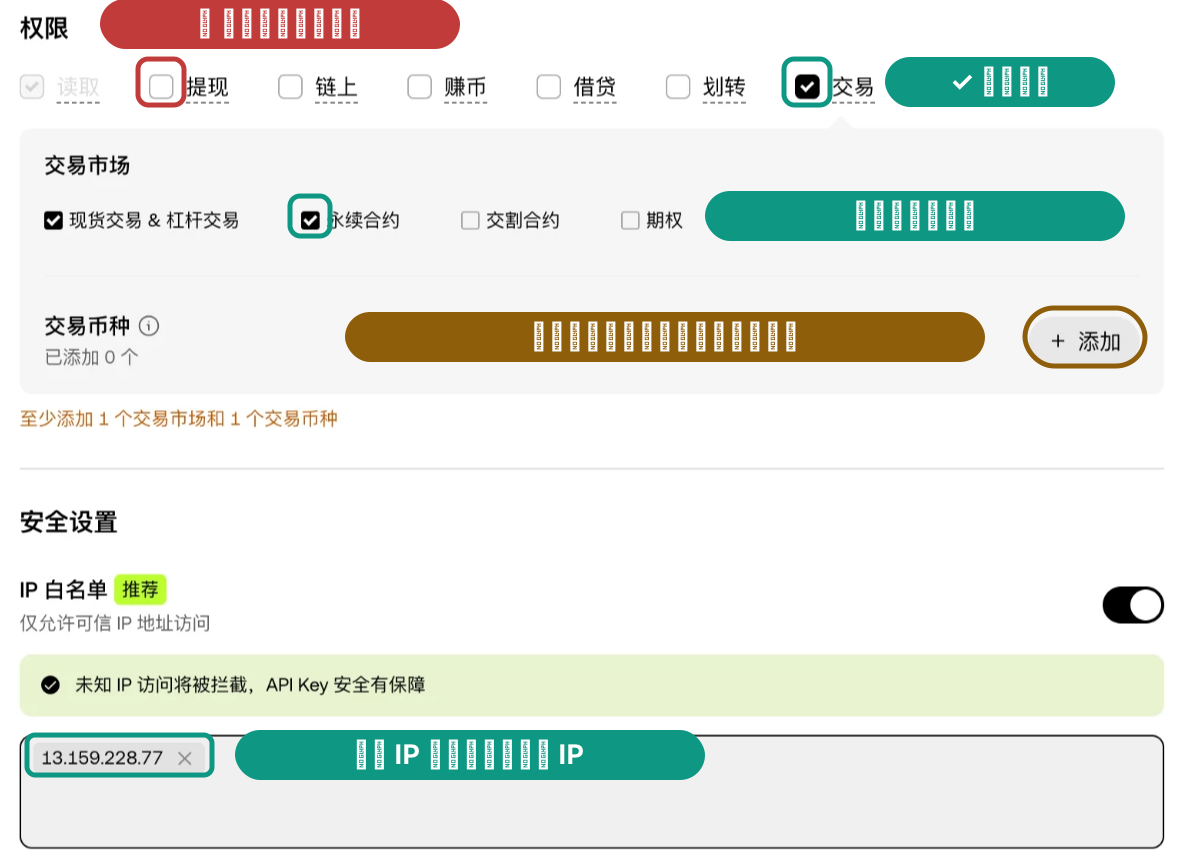
OKX notes on that page that API keys with trade or withdraw permission expire after 14 days of inactivity. If a grid has been stopped for a long time and the connection fails when you restart it, check on OKX whether the key still exists.
Keys for OKX paper trading
To start on paper: switch OKX to Demo trading, create a demo API key from your profile, and again enable only Read and Trade.
Demo trading has no sub-accounts. For a second paper account, use a demo key from a different OKX account.
Binance: create an API key
- Log in to Binance, open API management and create an API key (choose system-generated).
- Under API restrictions, tick Enable Reading and Enable Futures. The grid doesn’t need spot & margin trading, so you can leave that off.
- Don’t tick Enable Withdrawals, and leave every other permission off.
- Leave Enable Symbol Whitelist unticked: that way every pair can be traded, and you won’t need to come back when you change pairs.
- Under IP access restrictions, choose Restrict access to trusted IPs only (recommended), enter
13.159.228.77and confirm. - Save, and keep the API key and secret key.
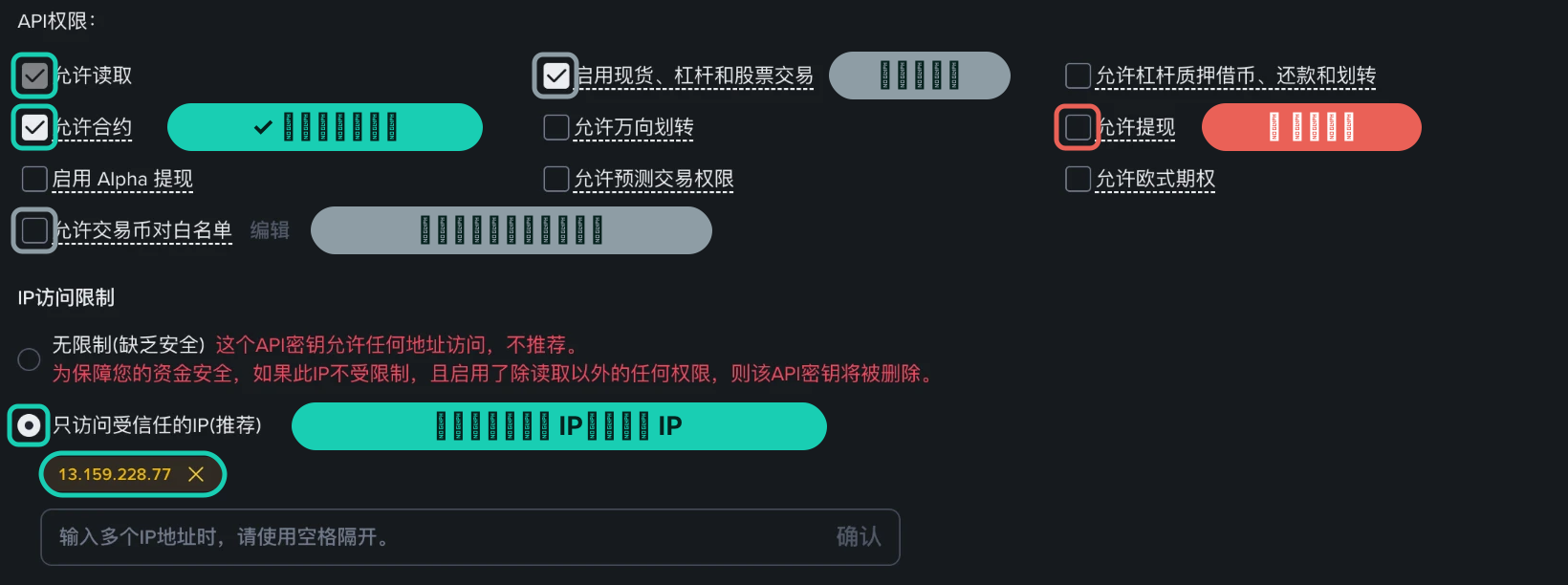
Binance states on that page that API keys with unrestricted IP access and any permission beyond reading will be deleted. So binding an IP isn’t just safer — it’s what keeps the key working long term.
Two more settings on your Binance futures account:
- Use single-asset margin (turn Multi-Assets Mode off).
- We suggest turning off BNB fee deduction. Otherwise fees are paid in BNB, aren’t counted in P&L, and your P&L will look better than it is.
Add it to ChainMakes
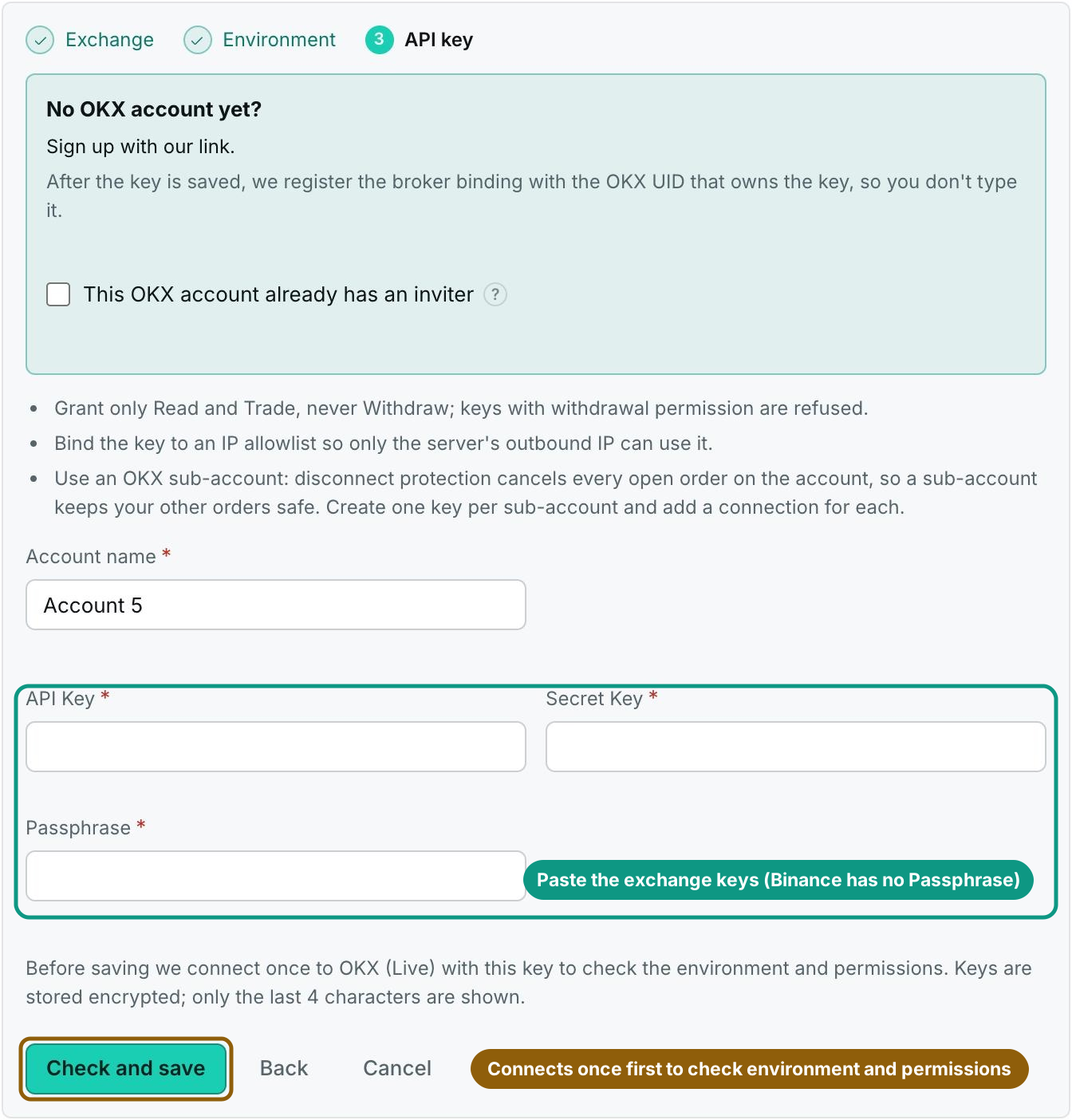
- Open ChainMakes, go to Account & settings → Exchange API, and click Add connection.
- Choose the exchange (OKX or Binance), then the environment (paper or live).
- Enter the API key and secret (plus the passphrase for OKX) and save.
Before saving, the app connects to the exchange once with the key to check the environment and permissions. Once it passes, the key is stored encrypted, and the app only ever shows its last 4 characters.
To revoke a key, or if you think it leaked
Delete the key on the exchange. ChainMakes loses access immediately: running grids stop placing orders, and existing positions stay in your account for you to manage.
Avoid scams
- Enter your key, secret and passphrase only in the ChainMakes app. Never send them to anyone.
- ChainMakes will never DM you asking for API keys or passwords, and will never ask you to transfer funds. Anyone claiming to be “support” and asking for these is a scammer.
Checklist
- Permissions are Read + Trade only (Binance: Enable Reading + Enable Futures)
- No withdraw permission
- The IP whitelist contains only
13.159.228.77 - It’s a sub-account holding only the funds you plan to run the grid with
- The secret and passphrase are stored safely and not shared with anyone